
DCC & Apps
Step 1: Setup Requirement
Before installing the Castrum Device Control Center (DCC) and your selected apps, you must ensure your phone is properly prepared.
Follow these steps on your phone:
1. Turn on the phone and complete the basic setup steps (boot into Castrum OS).
2. Open Settings
3. Tap About phone
4. Scroll to the bottom and tap Build number 7 times to enable Developer Options
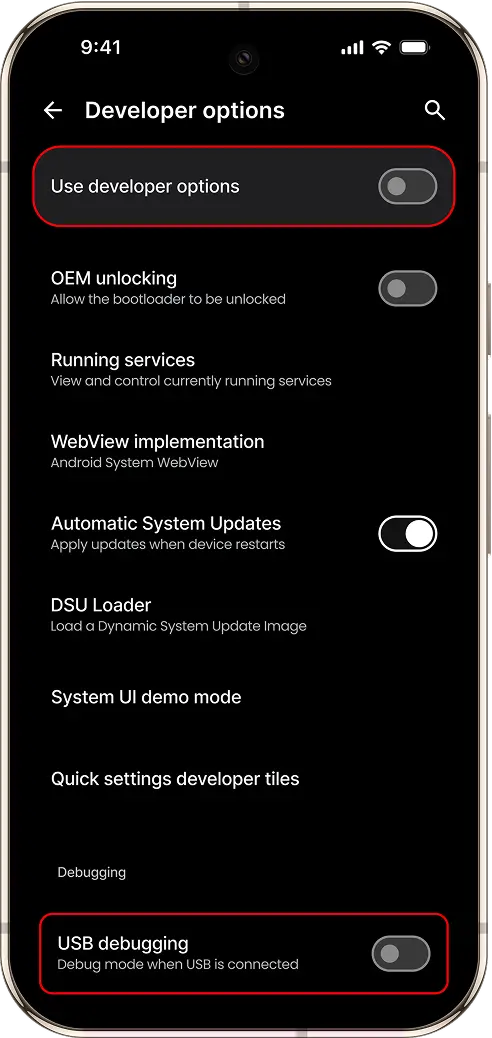
5. Go back to Settings → System → Developer options
6. Enable USB Debugging
Important: This setup step ensures the system can activate DCC and install other selected apps via ADB
Once USB Debugging is enabled: Click the button to continue.
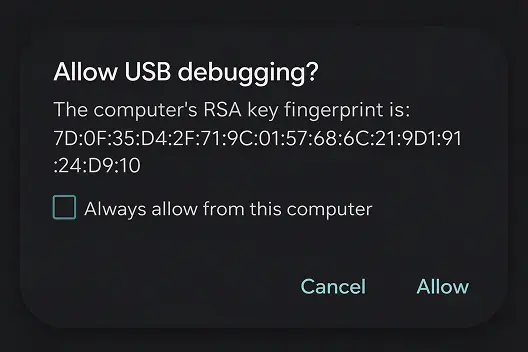
- Connect your phone to the computer via USB
- ⚠️ A confirmation pop-up will appear on your phone — you must tap “Allow” to proceed
- (Optional) Enable “Always allow from this computer” to avoid repeated prompts
Step 2: Install Apps
This is the final step before your device is fully secured and configured with essential and optional apps.
The following core components will be installed automatically:
- DCC (Device Control Center)
- VPN app
Note: DCC and VPN are pre-selected and cannot be removed. These are essential for device control and encrypted connectivity within Castrum OS.
Optional Apps:
You can now choose additional privacy-focused apps to install on your device.
Select from a curated list of 30+ trusted apps.
To proceed:
1. Select or deselect any optional apps based on your preferences
2. Click the button: Install
3. The installation process will begin immediately and may take a few minutes. Do not disconnect your device during this step. After installation is complete, your Castrum device will be fully provisioned and ready to use securely.
Step 3: Secure Your Device
You're almost done!
To ensure maximum security, it's important to disable USB Debugging and Developer Options on your device.
Why this matters: Leaving these features enabled could allow unauthorized access or modifications. Disabling them protects the integrity of your newly installed Castrum OS.
How to do this on your phone:
- Go to: Settings → System → Developer Options
- Toggle USB Debugging → Turn it off
- Scroll to the top and toggle Developer Options → Turn it off
- Ensure OEM Unlocking is also turned off
Once you've disabled all options: Click the button: Finish Setup & Go to VPN.
This completes the flashing and setup process.